Categories
Hardware Linux

Root Access to TL-WDR3600

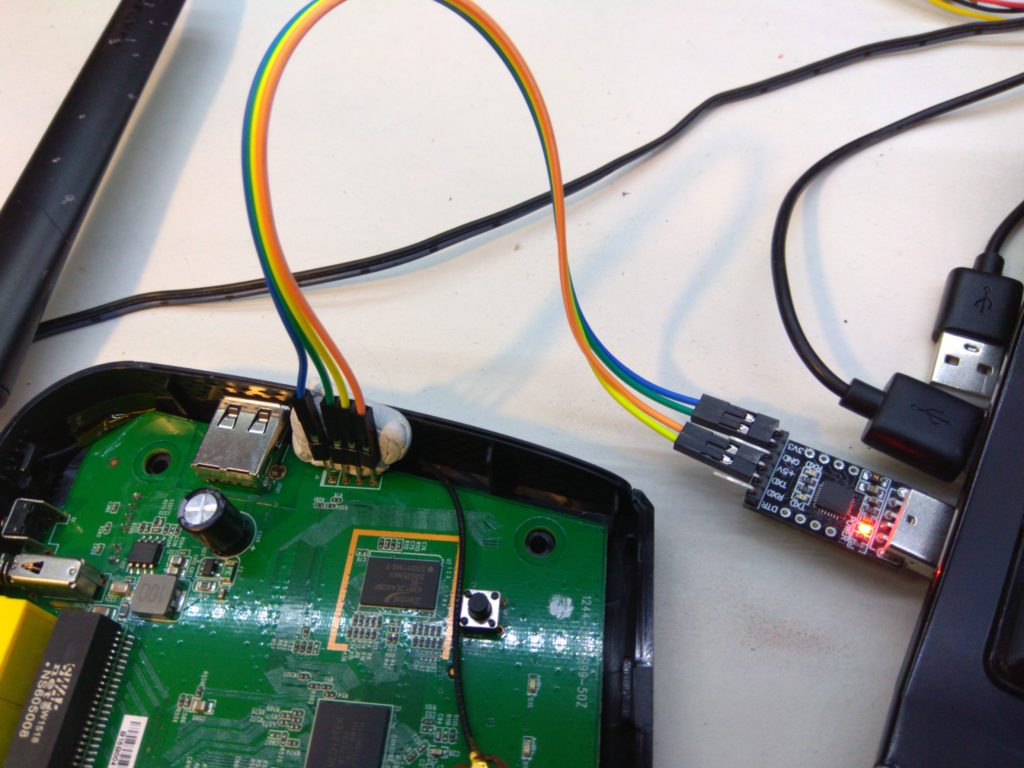
I played around with an old router I had lying around. It is a TP-LINK, model TL-WDR3600 (N600 Wireless Dual Band Gigabit Router). After opening the case you can see a 4-pin connection point that is apparently a serial port. The pinout being 3.3V, GND, TX, RX.

After powering it up with a 12V adapter and connecting to the serial port with a USB-to-Serial dongle you can get to a Linux login prompt. After a bit of searching I found out there is a root account with a factory default(!) password ‘sohoadmin’ [Source].

Logging into the TL-WDR3600 as root gives you a BusyBox shell with an ancient 2.6 Linux kernel. The root mount point seems to be a read-only (flash?) storage, so no fun to be had here. The system would probably need to be re-flashed to change any of the contents.

Categories
Hardware Linux

Serial Connection to ZyXEL NGB6515

This evening I toyed around with my now deprecated wireless router ZyXEL NGB6515. After opening the case there is a distinct 4-pin connection point for the serial console. The pins being 3.3V, GND, TX, RX (3.3V is the square pin).

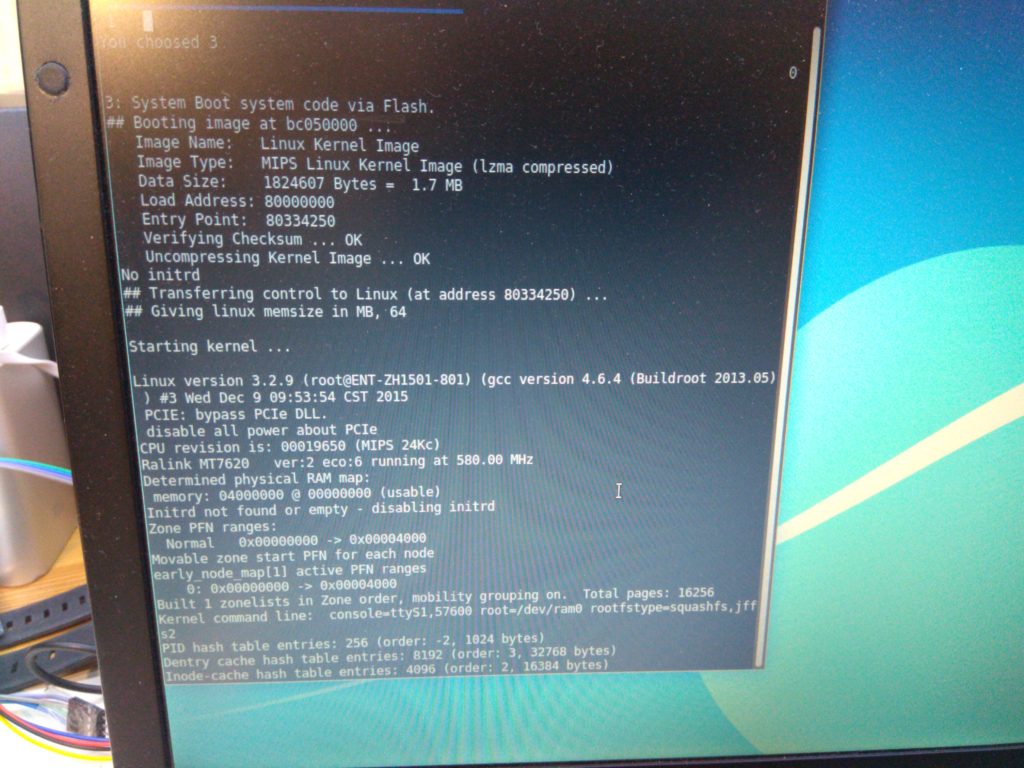
Connecting a USB-to-Serial dongle set to 57600 bauds yielded a log from the main MediaTek MT7620a processor. Right after I connected the 12V power there is a short period when the bootloader (U-Boot) waits for an integer input to choose which mode of operation the device should run in (e.g. flashing, OS boot etc.).

By default the system boots a 3.2.9 Linux kernel. Though I couldn’t come up with a way of controlling the command prompt. There is a “cmd>” prompt, but it ignored any input and just reprinted the prompt on every newline.

Sadly this device is not supported by OpenWRT, even though the MT7620a processor is a pretty standard chip among home routers.

Categories
Hardware Open source Programming

LilyBook – Tiny E-Ink Ebook Reader

As laid out in a previous post, I prepared an open source firmware for the ESP32 with e-ink display, LILYGO® TTGO T5 V2.4 and posted it on GitHub. See the git repository on how to build the source code.

Currently the firmware allows you to scroll through a whole book (in plain text format) that you can load from an SD card into the device’s flash memory. It also tells you your progress (how far in the book you’ve come).

But wait! There is not only the source code, I created a tightly fitting enclosure as well. You can fabricate it on your 3D printer. <STL to follow when I feel like it (-_-) >

Categories
Ideas Open source Programming Projects Technology

Idea: Tiny E-Ink Reader

I was shopping around on Aliexpress, looking at the current options for a small e-ink display. To find out if there was maybe something I could attach to the back of my future PinePhone. And then I discovered this:

LILYGO® TTGO T5 V2.2 ESP32  2.9″ EPaper Plus Module E-Ink Speakers

H208-_07
H208-_06

It is an ESP32 SoC with a 2.9″ e-ink display, microSD card slot, speaker and 4 buttons, all on a single board. Ready to be programmed. There is even a GIT repository (not just one, but two!) for a ready-built firmware.

This gave me an idea — how about building a tiny low-power, WiFi/Bluetooth-enabled ebook reader? Sounds like a plan!

I ordered the “version 2.4” of the board, whatever that means: Aliexpress link

G702-C主图01
2.9″ black and white version

Originally I was considering getting the Black-White-Red version of the display, but then I found out that the red color takes ages (up to 8 seconds) to redraw, so I went for the regular e-ink display. Hopefully it comes soon!

Categories
Ideas Privacy Technology

Idea: Free Internet Over Telegram

Here’s an idea how to get unlimited free Internet data for your mobile device:

  1. Buy a pre-paid SIM card with a “free Telegram traffic” package
  2. Write a TUN device transferring data over a Telegram chat
  3. Setup a tunnel between a “client device” and a “server device” (i.e. a phone with the SIM and a VPS)
  4. Free internet!

Why? Mobile service providers often offer unlimited data to certain servers as a promotion (they get some revenue from promoting the service). And since all of the traffic will be going through these servers, you won’t hit the FUP limit.

Feel free to substitute Telegram with any chat service, though this one seemed the most open and API-accessible out of the offered ones.

Resources

Categories
Awesome Open source Programming Projects Technology

How to use an ESP8266 — a jumpstart tutorial

If you haven’t done so already, go buy yourself an ESP8266-based board. It is a powerful little microcontroller. Something like Arduino but with WiFi.

ESP8266 in the wild

What hardware to get

What software to get

  • ESP open SDK
    • Contains all the tools needed for compiling your own ESP firmware.
  • NodeMCU firmware
    • This converts the ESP to a LUA-powered computer.
  • ESPlorer
    • Very helpful serial terminal with direct ESP8266 and NodeMCU support

What to do with it all

  1. Find the pinout of your board. Get the connections ready (USB-UART + 3.3V power source + ESP8266)
    • 3.3V to VCC, GND to GND
    • RX to TX and TX to RX (ESP–UART).
    • CH_PD to VCC
    • Leave Reset floating, connect to GND to reset the chip when needed.
    • Pull the GPIO0 low for flashing.
  2. If you just want to get the ESP fired up, use the esptool.py and upload the precompiled NodeMCU bin images.
  3. If you want to play around some more, get the SDK and NodeMCU source code. Compile the former and then the latter. Flash our own bin images.
  4. Remove GPIO0 connection to leave the flashing mode.
  5. Open the ESPlorer and issue some commands to the chip!

Useful links

  • Dejvino’s NodeMCU firmware
    • Forked from the original NodeMCU firmware repository. Contains a new Sniffer module — packet sniffing functions exposed to the LUA interpreter. This allows WiFi packet sniffing using the ESP8266.
  • NodeMCU API
    • List of provided LUA functions in the NodeMCU firmware.
  • LUA language reference
    • Beware that not everything is supported in the ESP version of LUA.
Categories
Linux PicoPosts

Adding certificates to Java keystore

Java has its own certificate storage. At least in Arch Linux it is located in:

/etc/ssl/certs/java/

To add a new certificate there, run this command:

keytool -keystore cacerts -importcert -alias myrootcert -file /path/to/MyRootCert.crt

(you might want to run that as root) As a password, the default is “changeit”.

I encountered this while setting up my Android project in IntelliJ IDEA, trying to do a Gradle build. Also the Android SDK tool was failing on an invalid SSL connection.

Categories
Awesome Privacy Technology

Firefox Extensions

Here is a short list of Firefox extensions that I think are essential for your everyday browsing. I don’t want to persuade you into using them, this is more like a note to self for future reference.

Other nice to have extensions are these:

And it goes without saying that if there is one thing you don’t need, it is Adobe *, e.g. Flash. Just don’t download it. No one needs it. No one.

Categories
Awesome Linux Open source Programming Projects Technology Web development

HTTP and HTTPS running on the same port

Running HTTP and HTTPS on the same port with Apache. They said it couldn’t be done. They were wrong!

https://github.com/Dejvino/https-multiplexer

I’ve modified a simple Python port forwarding utility to act as a port multiplexer that can automatically forward HTTP and HTTPS requests to the appropriate ports. If the request looks like an HTTP in plain text, it forwards it to port A. Otherwise it is assumed to be HTTPS and is forwarded to port B.

Now you can run your web applications from a single port, regardless of using HTTP or HTTPS. Hooray!

Categories
Linux Open source Privacy Projects Technology Web development

How to become a Certification Authority

This short How-To has been compiled based on the work I’ve done so far while building my personal home server. To achieve reasonable level of privacy without spending a fortune on it, I’ve become my own Certification Authority (CA).

Overview

These are the basic steps covered later in detail:

  1. Create a CA key and certificate.
  2. Create a server key and a Certificate signing request (CSR).
  3. Sign the CSR using the CA key.
  4. Use the new server certificate in Apache.
  5. Import the CA certificate into your browsers.
  6. … Profit!

What this results in is a single certificate file for your CA that you distribute and import into your browsers (PC, phone, …). Every individual signed server / service certificate you create and use is then automatically recognized as valid and trusted. If you are using a personal set of services (various web applications, XMPP server, etc.), this saves you a lot of “exception adding”, just import one (your) CA certificate and everything is working, no need for the browser to nag about self-signed certificates.

Detailed how-to

Creating a CA key pair

First, prepare your “playground”, a data storage somewhere on your (preferably Linux) computer. It should look like this:

root-ca
 |-- conf     ... for configuration files.
 |-- private  ... for private CA key (protect this directory!)
 |-- public   ... for public CA key
 |-- requests ... for incoming CSR
 +-- certs    ... for resulting certificates

Now cd to the root-ca directory. Create a configuration file conf/openssl.conf with the following content:

[ req ]
default_bits            = 2048
default_keyfile         = ./private/root.pem
default_md              = sha1
prompt                  = no
distinguished_name      = root_ca_distinguished_name
x509_extensions = v3_ca

[ root_ca_distinguished_name ]
countryName             = UK
stateOrProvinceName     = Sussex
localityName            = Brighton
0.organizationName      = Example Inc
commonName              = Example Inc Root CA
emailAddress            = david@example.com

[ v3_ca ]
subjectKeyIdentifier    = hash
authorityKeyIdentifier  = keyid:always,issuer:always
basicConstraints        = CA:true

[ ca ]
default_ca              = CA_default

[ CA_default ]
dir                     = .
new_certs_dir           = ./certs/
database                = ./conf/index
certificate             = ./public/root.pem
serial                  = ./conf/serial
private_key             = ./private/root.pem
x509_extensions         = usr_cert
name_opt                = ca_default
cert_opt                = ca_default
default_crl_days        = 30
default_days            = 365
default_md              = sha1
preserve                = no
policy                  = policy_match

[ policy_match ]
countryName             = match
stateOrProvinceName     = match
organizationName        = match
organizationalUnitName  = optional
commonName              = supplied
emailAddress            = optional

[ usr_cert ]
basicConstraints        = CA:FALSE
subjectKeyIdentifier    = hash
authorityKeyIdentifier  = keyid,issuer:always
nsCaRevocationUrl       = https://www.example.com/example-ca-crl.pem

It might look long and complicated, but most of it is pretty self explanatory. What you should edit is the root_ca_distinguished_name section and the nsCaRevocationUrl.

Then initialize the “certificate counters”, like so:

echo "01" > conf/serial
touch conf/index

Finally, generate a CA key pair (public and private root.pem files):

openssl req -nodes -config conf/openssl.conf -days 1825 -x509 -newkey rsa:2048 -out public/root.pem -outform PEM

Creating a server key pair

On the server for which you want to obtain a signed certificate, do this:

openssl req -new -newkey rsa:2048 -nodes -keyout server.key -out server.csr

Then you can transfer the server.csr file to the CA’s requests directory.

Signing the CSR

Simply call this command and you get a signed certificate server.cert from a request server.csr:

openssl ca -batch -config conf/openssl.conf -in requests/server.csr -out certs/server.cert

Setting up SSL in Apache

Somewhere in the httpd.conf or inside a virtual host configuration add these lines:

 Listen 443
 SSLEngine on
 SSLCertificateFile /path/to/keys/server.cert
 SSLCertificateKeyFile /path/to/keys/server.key
 SSLCertificateChainFile /path/to/keys/root.pem

These lines activate SSL and the port for SSL, specify server certificate, private certificate key and (optionally) root CA certificate. After restarting the server, HTTPS should be ready to use.

Importing and using

Different applications have different ways of importing trusted CA certificates.

On Windows, you just “execute” the certificate and install it into the appropriate category. This should take care of most of your applications. Web browser (e.g. Firefox) might need to have this certificate installed explicitly, ignoring certificates in the OS.

On Linux, look for /etc/ca-certificates.conf, add the certificate filename there and copy the file to /usr/share/ca-certificates/. Then run update-ca-certificates –fresh to recreate the list of known certificates.


Based on these articles: