I’ve spent a bit of time with my new Linux toy, PINE64 PinePhone. This is a smartphone built on top of components that are supported well by the mainline Linux kernel. So in theory it should be a piece of cake to get installed. Is it?
Various Gotchas
Let’s start with a few gotchas that somewhat surprised me.
WiFi needs a battery
The WiFi / GSM modem needs a battery to be connected in order to operate. Otherwise it won’t even appear as an available device. You could spend a lot of time trying to connect to the WiFi like this. In vain.
Power Hungry
The phone is really hungry for power and often it is not enough to connect it to a PC. The battery will discharge even when connected via a USB cable, unless the power source is strong enough. Running on 0.5A (2.5W) is not enough. It generally takes around 1.4A (7W) when running a full featured OS and it will drop to 0% eventually.
Keyboard!
You never appreciate it enough until you lose it. Having a shell in your phone is great. Though you can’t really use it, since there is no keyboard available. This one is somewhat obvious, but it is a big hurdle when trying out various systems. You can install some virtual keyboard, but it won’t have all the keys you need and it doesn’t work in every environment. Not reliably at least. Your best bet is to get an SSH connection going as a workaround. Hardware keyboards are not supported / don’t exist right now.
Operating Systems
I’ve tried out multiple systems and environments, here are a few thoughts about them.

postmarketOS
I’d say this is the best OS out there right now. At least in terms of having a solid PinePhone support, configurability and a reasonable Linux distribution underneath. It has a dedicated PinePhone wiki page. You have a choice of multiple UI environments (including phosh, mate and xfce4). It is based on Alpine Linux with all of its ARM packages at your disposal.
Though it was very exciting to have a full blown Linux desktop like Xfce on the phone’s screen, the touch controls were something to be desired. A much better experience can be achieved with Librem’s Phosh. This on the other hand has a scaling turned on (lowered DPI), which messes up a lot of applications so that they become unusable. But it is still closest to a usable working environment.
What I appreciated the most was pmbootstrap which is a CLI tool that lets you configure your custom OS image down to what UI and packages you want to include by default. Thanks to this you have a tailored SD Card ready to be used with your PinePhone.
Arch Linux ARM
My favorite Linux distribution is available for PinePhone as well! Although not customized for it, it is possible to use this and customize it on your own. There is a general guide on installing Arch for PINE64 board, which the PinePhone is based on. There is also a customized kernel that you can use over at xnux.eu with a nice tutorial on how to install it.
I’ve just started with this one, so not much to report apart from that it is working. I have a terminal login prompt on the screen and a SSH connection over a USB cable from my PC. Life is good.
Fedora Mobile
You can install all sorts of things on the PinePhone. I’ve tested this set of shell scripts that help you prepare a Fedora Mobile on an SD Card. A system that was not optimized for this device. The result itself was unusable (at least the release that I tested). Nevertheless I enjoyed learning about the process of preparing a bootable SD Card. Even though it is basically the same for every OS, this set of bash scripts was really easy to study and use it as a tutorial.
Ubuntu Touch
Ubuntu Touch somewhat effortlessly worked to the extend you’d expect with a partially supported device. I liked that they provide an SD Card image for the PinePhone, so all you have to do is to flash it (e.g. using dd) and pop it into the phone.
I personally don’t enjoy Ubuntu for some reason so I won’t experiment with it or comment on this much more.
PS:
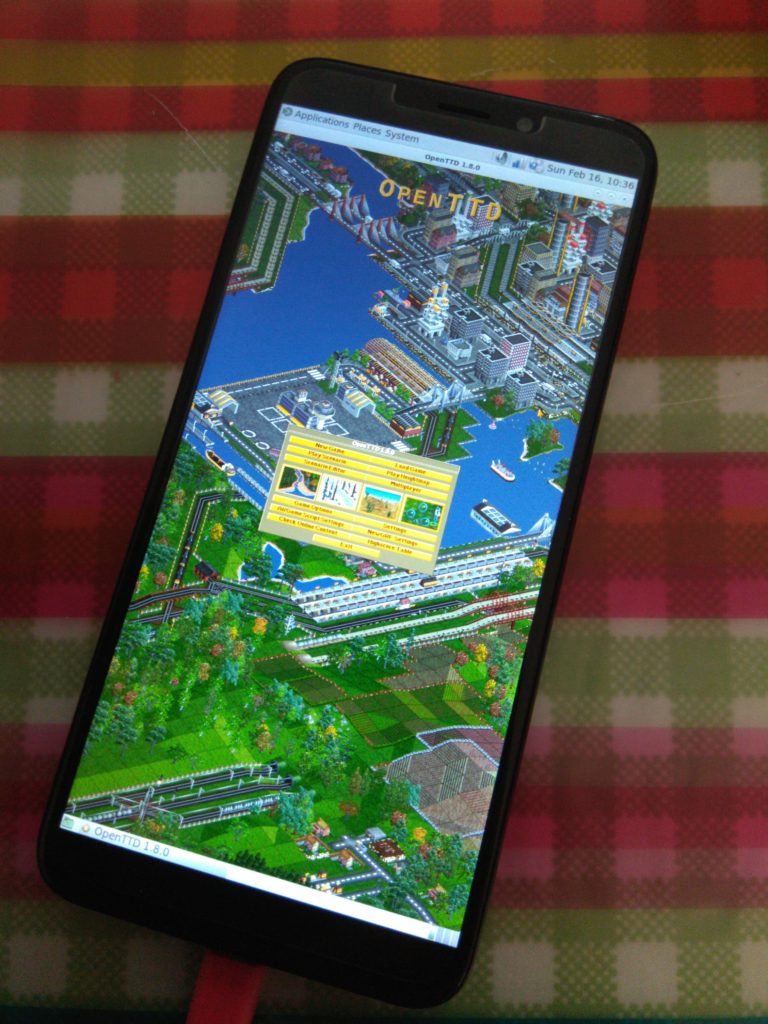
Did I mention you can run OpenTTD on it? Oh yeah…